Appearance
Upload a video
Upload a recording to a project so you can annotate it. Large files are sent in parts, so a short network drop does not stop them.
Before you start
- Video: what a video is here.
- Create a project: a video always lands in a project.
Your file must be MP4, MOV or WebM. The largest file is 2 GB. A file over 64 MB is sent in parts of 16 MB. A file between 500 MB and 800 MB is made smaller in your browser first. A file over 800 MB skips that step and uploads as it is.
Steps
- Open your project. Its video list opens.
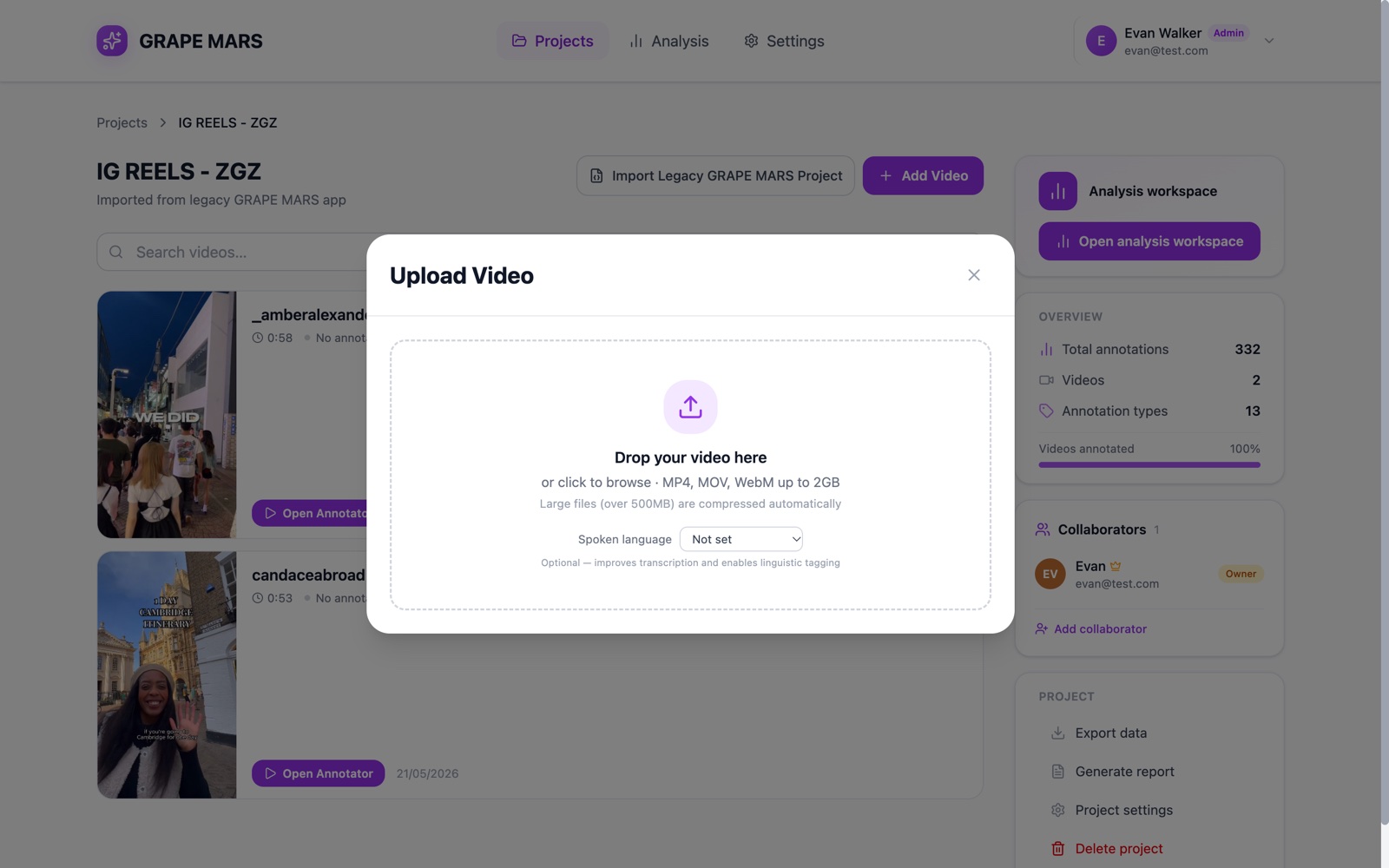
- Click Add Video. The upload window opens.
- Select a language under Spoken language. This step is optional.
- Drop your file on the dashed box. You can click the box to browse instead.
- Wait for the bar to reach 100%. The video opens in the annotator. For a file over 64 MB, the line under the bar also counts the parts, for example "part 3 of 110".
Keep the tab open the whole time. Keep the computer awake too. If the network drops for a moment, GRAPE MARS sends that part again by itself. A page reload ends the upload, and it does not resume.
You can start from the Projects page instead. Click the arrow beside New Project, then Upload a Video. That window asks for a project name first. It then makes the project and uploads in one step. The button reads Create Project & Upload.
Check it worked
The video plays in the annotator. Go back to the project. The list shows a row with your file name and its length.
If something goes wrong
- My file is refused before the upload starts
- The upload is stuck at "Optimizing video for upload"
- The bar stops before the end and then fails
- Upload failed at part N of M
- File too large. Maximum size is 2GB.