Appearance
Upload video
What this screen is for: it takes a file from your computer and puts it in GRAPE MARS as a video.
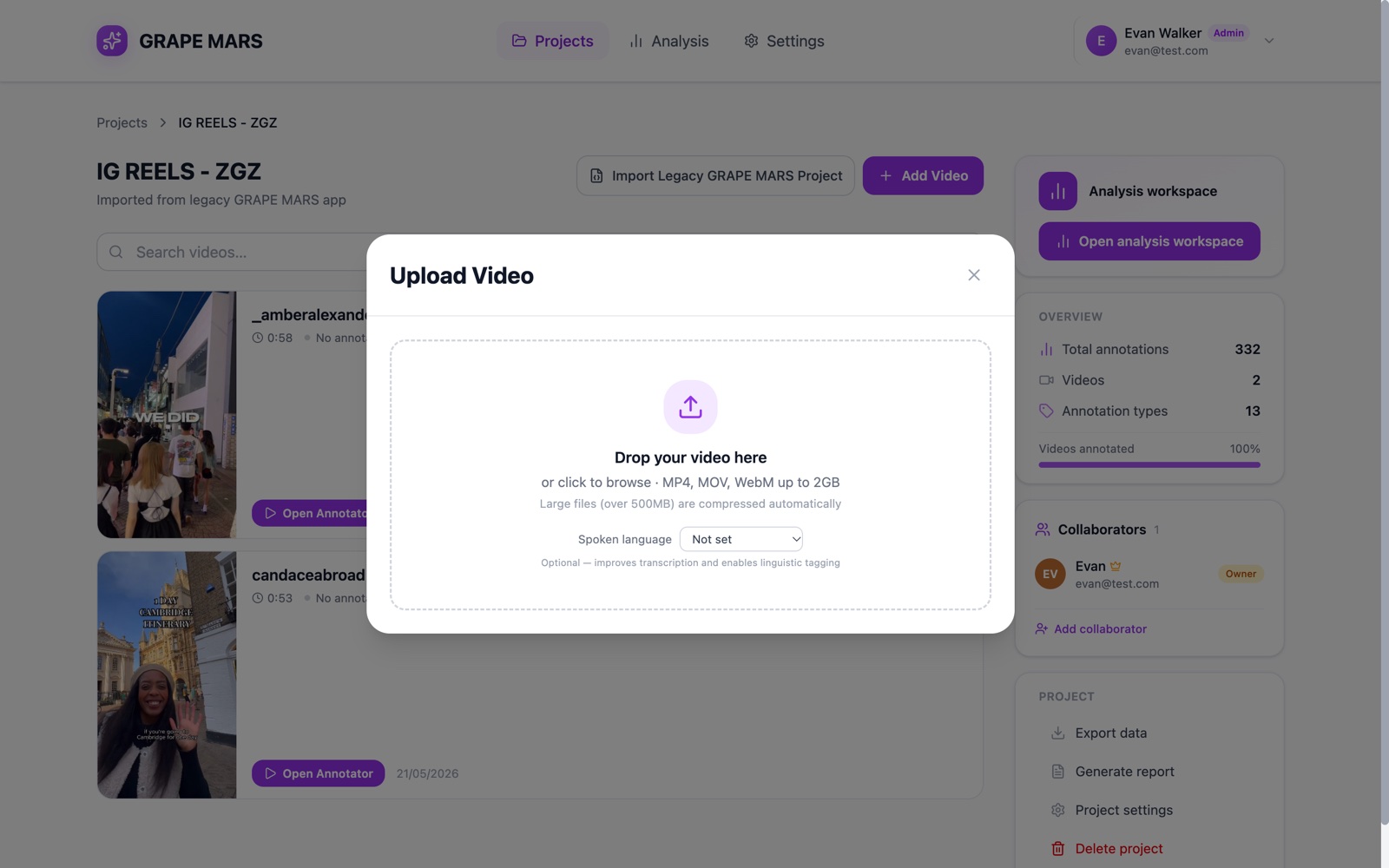
The window opens over the page. Add Video opens it from a project. Upload a Video opens it from the Projects page.
- Title: the words Upload Video, with an X to close the window.
- Drop box: the dashed area. Drop a file on it, or click it to browse. The first line under it reads "or click to browse · MP4, MOV, WebM up to 2GB". The second line reads "Files between 500 MB and 800 MB are made smaller in your browser first; larger files upload as-is, in parts".
- Spoken language: a small list with Not set, Español, Català / Valencià and English. It is optional. It makes the transcript better and lets GRAPE MARS tag the words.
- Project name (required) and Description (optional): two boxes under the Create a project header. They show only when you open the window from the Projects page.
- Create Project & Upload: the button in that same case. It makes the project, then uploads.
- Progress: a spinning circle and a bar. Files between 500 MB and 800 MB first show "Optimizing video for upload…" with a share in percent. The bar then shows "Uploading" with the file name. For a file over 64 MB, the line under it also reads "part n of N".
- Message: a red strip at the top when something is wrong, for example "File too large. Maximum size is 2GB."
- Notice: an amber strip when GRAPE MARS could not shrink the file, or when the file is over 800 MB. The upload goes on in parts. This is not an error.
Keep the tab open until the bar reaches 100%.